

App blocks advanced features
Use the advanced fields on LinkSpot's app blocks (CSS selector targeting, block template configuration, product copies and variants) to control where an element renders, which saved settings it uses, which products it shows, how often a product repeats, and which variants it shows.
When you add a LinkSpot app block to your theme, the block exposes a basic set of settings in the theme editor sidebar. For most cases, the basics are enough. Some app blocks also expose two advanced fields for power users: CSS selector and Block template. This article explains when to use each, and how the Block template field carries products, copies and variants into the Product Set app block.
CSS selector
The CSS selector field tells the app block where exactly to render, beyond Shopify's default block placement. Paste a CSS selector that targets the element on the page where you want the LinkSpot element to attach.
Available on:
- Pin block
- Annotation block
- Product Set block
- Product Badge block
How it works:
- Open the block's settings in the theme editor sidebar.
- Find the CSS selector field under the advanced options.
- Paste the selector. For example,
.product__media-wrapperto attach the element to the first matching product media wrapper on the page. - Save the theme.
Use this when the default block placement does not land where you need it: a specific container, an element inside a custom section, or a parent that does not directly accept blocks.
Block template
The Block template field applies a saved configuration (exported from a LinkSpot element in the admin) directly to the app block. The block then renders with the settings from the JSON you pasted, instead of using its own block settings.
Available on:
- Pin block
- Annotation block
- Product Set block
How to export a template from an element:
- In the LinkSpot admin, open the element form for the pin, annotation, or product set whose settings you want to reuse.
- Open the form's action menu and click Library. Switch to the Export Block tab eg:
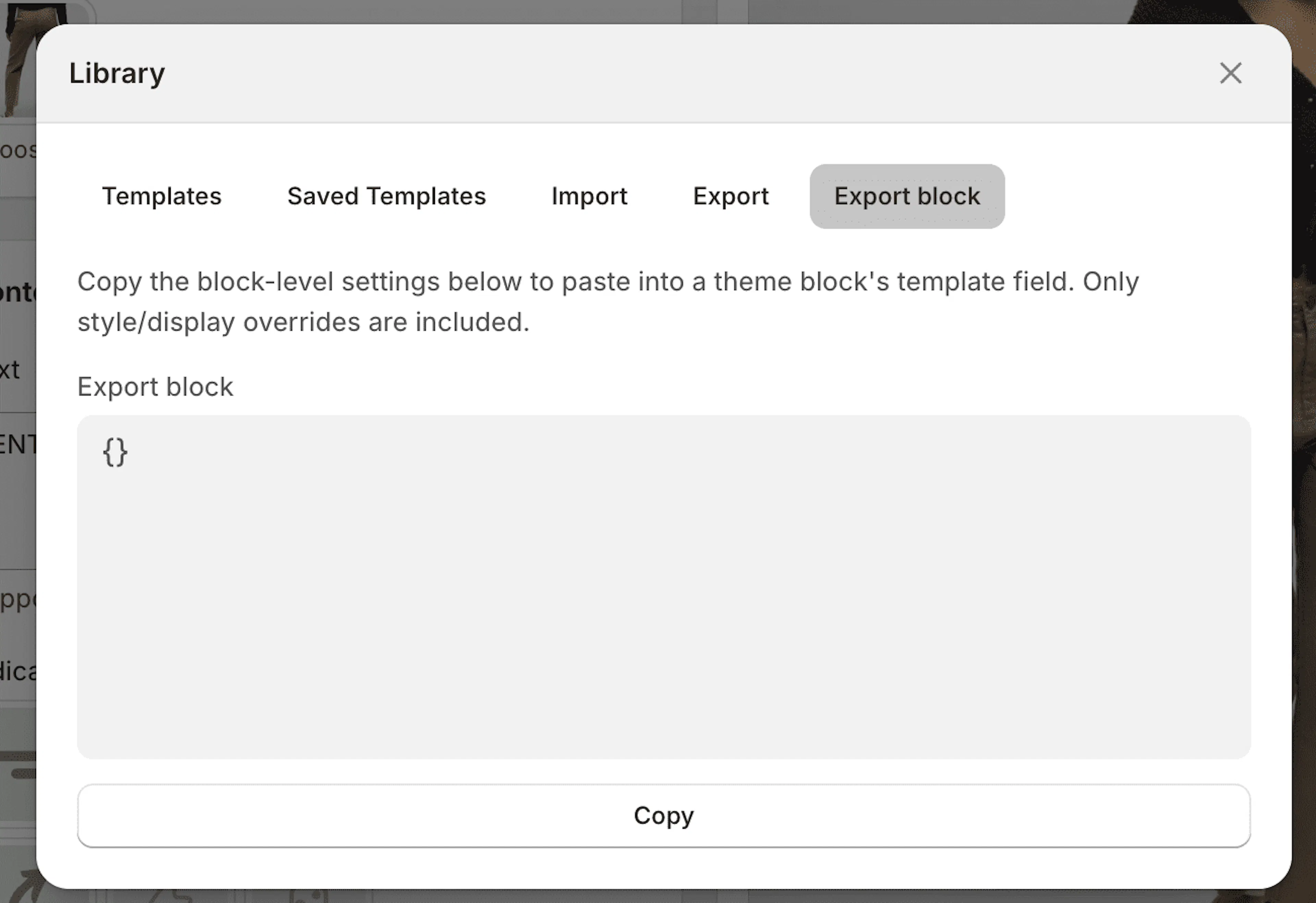
- Copy the JSON.
How to apply it to a block:
- In the theme editor, open the app block's settings.
- Find the Block template field under the advanced options. The placeholder reads: "Paste exported block template JSON here."
- Paste the JSON.
- Save the theme.
The block now renders using the exported settings, ignoring the block's own configuration. This is useful when you want to reuse the exact look and behavior of an existing element in a different spot on your theme, without re-entering all the settings.
Products, copies and variants
A product set can set two things per product in the LinkSpot admin, how many times a product repeats (see Repeating a product in a set) and which of its variants to show (see Showing specific variants of a product). Wherever LinkSpot places the set for you, both come along and there is nothing else to do.
The Product Set app block works differently. It takes its products from its own Products field in the theme editor, so a saved set never reaches it. The generator in the LinkSpot admin builds the code that carries the products and their settings into the block.
- In the LinkSpot admin, go to Settings > Compatibility > App blocks.
- On the Product Set card, click Generate template.
- Pick the products the block should show. Hover a product row and click the gear icon to set its Copies, or which of its variants to show.
- Click Copy code.
- In the theme editor, open the app block's settings and paste it into the Block template field.
- Save the theme.
The code looks like this.
{
  "prods": ["olive-green-jacket", "lead-all-lite"],
  "pqty": { "olive-green-jacket": 3 },
  "pvar": { "lead-all-lite": [41234567890123, 41234567890124] }
}
prods holds the products, pqty the copy counts and pvar the variant ids. Only the keys you actually use appear in the code. The block now shows exactly those products, as many times as the code says, on the variants listed under pvar. Every other product shows once, on its default variant.
Copying from a product set you already built
If the same grouping already exists as a product set, use Copy from a product set at the top of the generator. It loads that set's products together with their copies and variants, and you can adjust them before copying the code. The set itself is not changed and the block does not stay tied to it.
Keeping the block's own product list
The generator includes the products by default, so the block's Products field can stay empty and one paste configures everything. Turn off Include the products in the code if you prefer to pick products in the theme editor. In that case both places have to hold the same products, because copies and variants are matched by product handle.
Using it together with an exported template
The Block template field holds one piece of JSON, so a second paste replaces the first. Paste what the field already holds into Already have something in Block template? and the generator keeps those settings and writes the products, copies and variants next to them.
{
  "clay": "mini",
  "csize": "sm",
  "prods": ["olive-green-jacket", "lead-all-lite"],
  "pqty": { "olive-green-jacket": 3 }
}
Good to know
- Products are matched by their URL handle. If you change a product's URL handle in Shopify, the code no longer matches that product. Generate it again to refresh it.
- A product can repeat up to 10 times, and can show up to 10 variants. The block itself accepts up to 20 products.
- A product uses
pqtyorpvar, never both. If both name the same handle, the variants win. - Unlike an exported block template, this code is tied to your store, because it names your own products and variants.
- The code applies as soon as the theme is saved. It does not wait for anything to sync.
Tips
- The CSS selector and Block template are independent. You can use one without the other, or both together.
- If the CSS selector does not match any element on the rendered page, the block has nowhere to attach and the element will not appear.
- A Block template overrides the block's own settings. To revert to using the block's settings, clear the Block template field.
- Block template JSON is portable: the same JSON works for the block on any theme as long as the block type matches. The exceptions are the
pqtyandpvarentries described above, which name products and variants from your own store.