

Using templates
Pick a saved template when you create or edit a LinkSpot element to copy its settings instead of configuring everything from scratch.
A template is a saved set of element settings (style, content defaults, layout choices) that you can apply to a new or existing element with one click. LinkSpot ships with a set of system templates for common cases, and you can save your own as shop templates (see the related articles for both).
This article covers how to apply a template to an element.
Supported element types
Templates are available for:
-
Pins
-
Annotations
-
Captions
-
Badges
-
Buttons
-
Product sets
Collages do not support templates. Their composition is too specific to a particular product and image to be reusable as a preset.
Open the library from the element form
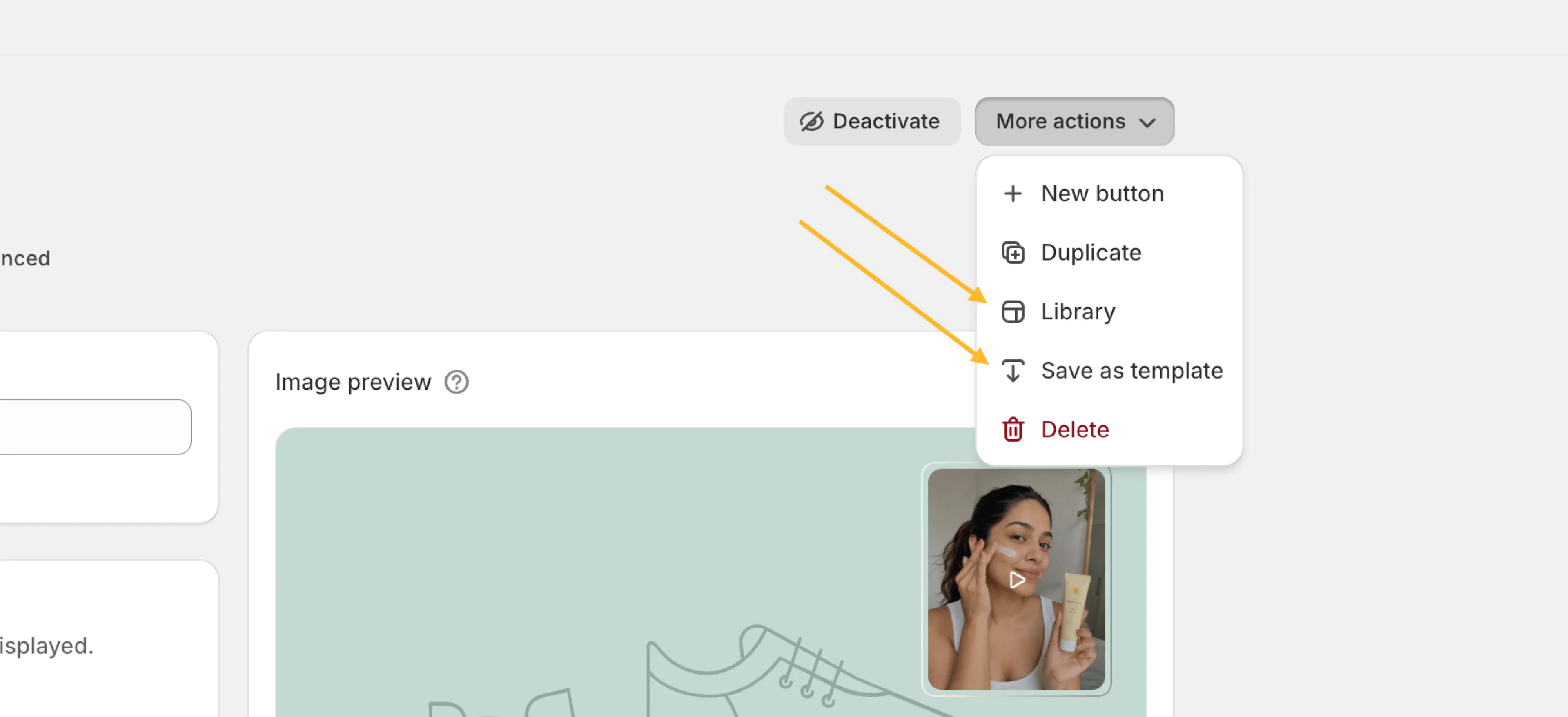
When you create or edit one of the supported elements, the form has a Library action in the action menu (its icon shows a template-style symbol).
-
Open the element form (create a new element, or open an existing one for editing).
-
Click Library from the form's action menu.
-
The Library modal opens.
The modal has tabs:
-
Templates. System templates shipped by LinkSpot for this element type.
-
Saved. Templates you have saved in this shop for this element type.
-
Import. Paste a JSON snippet of settings exported from another element to copy them in.
-
Export. Copy the current settings as JSON for sharing or importing elsewhere.
For pins, annotations, and product sets, there is also an Export block tab that produces a theme-block-friendly export.
Apply a template
-
In the Library modal, pick the Templates or Saved tab.
-
Browse the gallery and click the template you want to apply.
-
The template's settings are loaded into the form.
-
Optionally adjust any fields. The template does not lock anything; everything is editable.
-
Click Save to save the element.
Applying a template overwrites the current form values with the template's values. Settings the template does not include (such as targeting, which is per-element) are left untouched.
Tips
-
Use a template as a starting point and tweak from there, rather than building common elements from scratch each time.
-
If you find yourself adjusting the same fields after applying a system template, save the result as a shop template so the next element of the same type starts in the right place. See Creating shop templates.