

Show badges on collection pages
Show a badge on the product cards of collection pages, search results and other product grids, and let a LinkSpot sale badge replace your theme's Sale badge.
A badge appears on the product page by default. It can also appear on product cards, the small product tiles on collection pages, search results and featured collection sections. This takes two steps. You set up product cards once for your theme, then you turn on product card placement for each badge you want on the cards.
Before you start
- The LinkSpot app embed must be on for the theme. Check it in Settings > Compatibility > Theme integration.
- The badge must target the product. A badge only appears on the cards of the products it targets on the product page. See Targeting products and collections.
Step 1. Set up product cards for your theme
- In the LinkSpot admin, open Settings > Compatibility > Product cards.
- The page opens on your published theme. To set up another theme, pick it in the theme picker at the top.
- In the Product card detection card, click Set up CSS selectors. LinkSpot opens a window on your storefront, scans a collection page and saves two selectors, Product card selector and Image wrapper selector. Leave the window open until the scan finishes.
- In the Badges display method card, select Automatic.
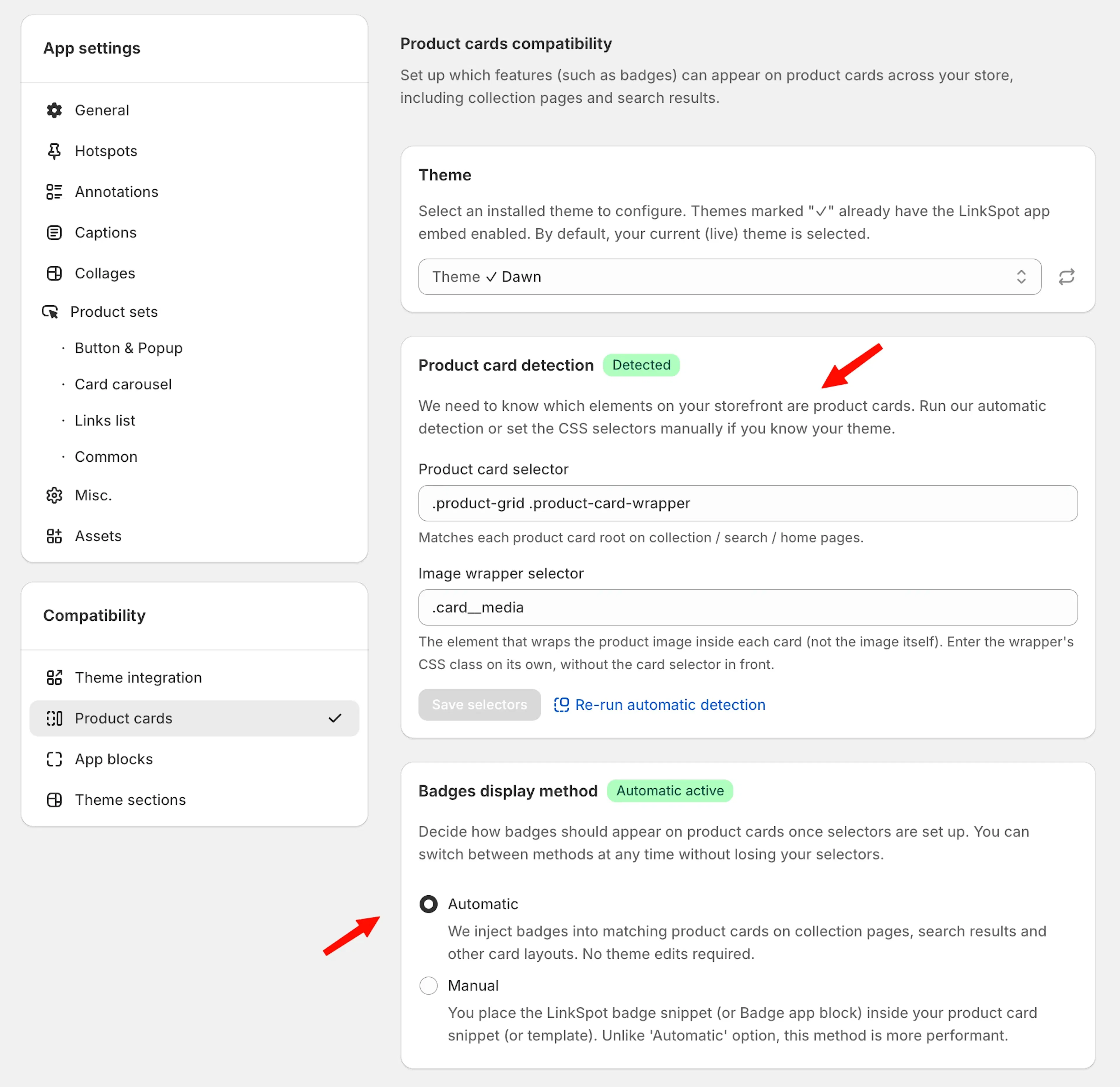
If you know your theme's selectors, click Manually set selectors in step 3 and enter them yourself. If you prefer to place badges through the theme editor, select Manual in step 4 and follow Product cards setup.
/
The selectors are saved per theme. When you publish a different theme, run this step again for it.
Step 2. Turn on product card placement for the badge
Product card placement is set to None on every badge by default. With None, the badge stays off the cards even when step 1 is done.
- Go to Elements > Badges and open the badge.
- In the Placement tab, scroll to the Product card placement card.
- Under Automatic, pick where the badge goes on the card.
- Inside the media container. The badge sits on top of the card image.
- After the media container. The badge sits below the card image.
- Custom CSS selector. The badge goes inside the element your selector matches in the card.
- Click Save.
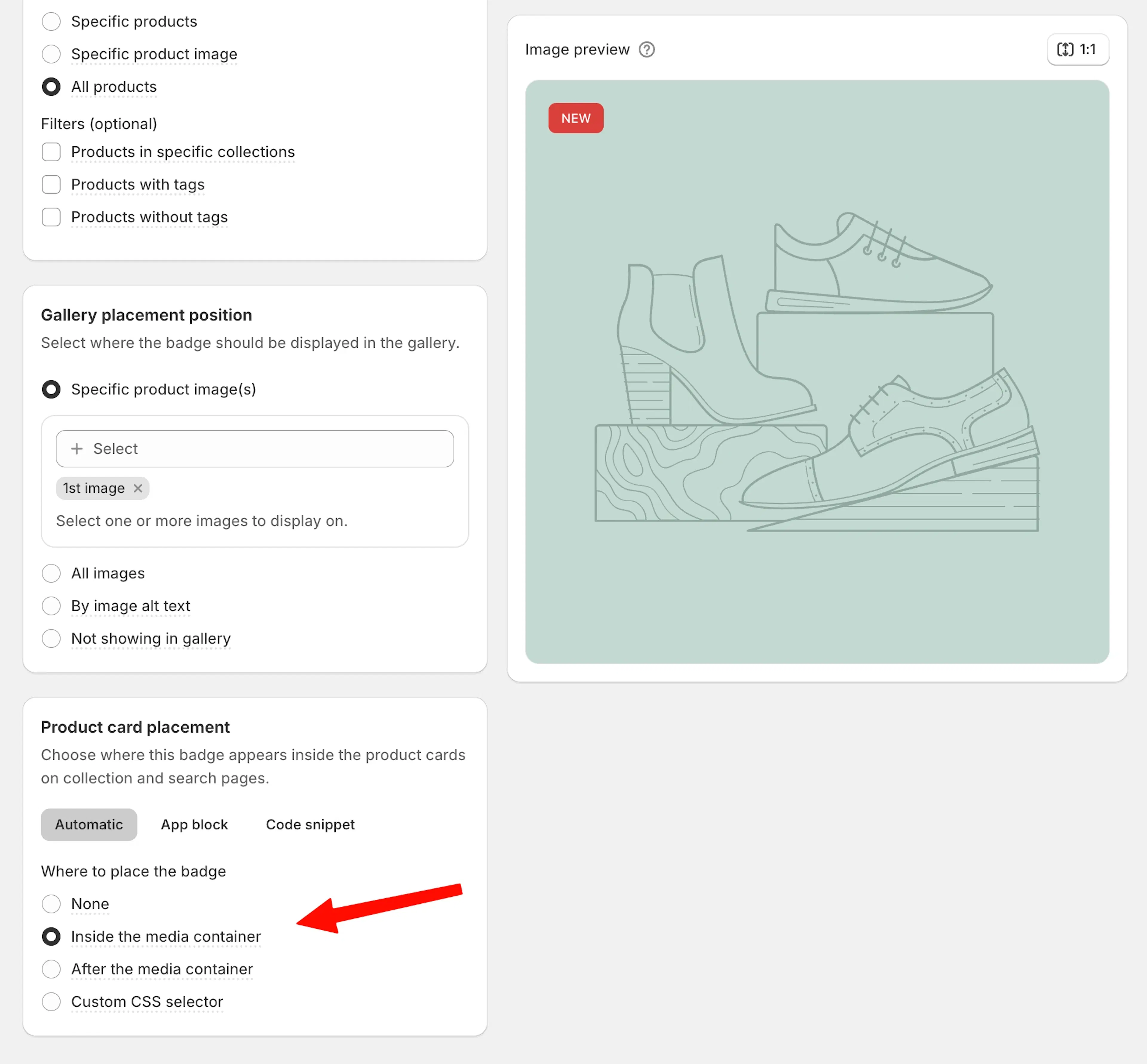
Repeat step 2 for every badge you want on the cards. Each badge has its own setting, so you can show a SALE badge on cards and keep a size guide badge on the product page only.
What applies on product cards
- Targeting. All products, specific products, collections, tags and excluded tags work the same as on the product page.
- Scheduling. A scheduled badge shows on cards only between its start and end dates.
- Visibility conditions and device visibility. These apply the same way as on the product page.
- Image position. The settings that choose which gallery image shows the badge do not apply. A card shows one image, and the badge goes where Product card placement says.
Replace your theme's Sale badge
Dawn, Horizon and the themes built on them show their own Sale badge on discounted products. When a LinkSpot sale badge shows on the same product card, LinkSpot hides the theme's Sale badge. The card then shows one sale badge, the LinkSpot one. There is nothing to turn on.
LinkSpot treats a badge as a sale badge when it is one of these.
- A Preset badge with the Price with strikethrough preset.
- A Text badge whose text uses
{{compare_at_price}},{{discount_percentage}}or{{discount_amount}}, for example-{{discount_percentage}}%.
The rest stays as it is.
- The theme's Sold out badge always stays visible.
- Other LinkSpot badges, such as NEW or low stock, leave the theme's Sale badge in place.
- A text badge that says SALE without any of the variables above does not count as a sale badge. Add
{{discount_percentage}}or{{discount_amount}}to its text if you want it to replace the theme's badge. - A sale badge set to hide on some devices, or to show only above a minimum container width, does not hide the theme's badge. This keeps a sale badge on the card when the LinkSpot one is hidden.
- The product page is not affected. Only product cards change.
On other themes the theme's Sale badge stays visible. Contact support with your theme name if you want LinkSpot to replace it there too.
The badge does not show on a card
- Product card placement is None. Open the badge and pick a placement under Automatic (step 2).
- The display method is Manual. Manual expects you to place the Product Badge app block or the snippet in the theme. Switch to Automatic, or finish the manual setup from Product cards setup.
- Product cards were set up on another theme. Selectors are saved per theme. Open Settings > Compatibility > Product cards, pick your published theme and run step 1 for it.
- Your theme changed its card layout. After a theme update, click Re-run automatic detection in the Product card detection card.
- The badge does not target the product, or its schedule is not active. Check the badge's Placement and Advanced tabs.
- The change is recent. Saved changes can take a short while to reach the storefront. See Why changes don't reflect in storefront instantly.
Related articles
- Product cards setup. Display methods, the Product Badge app block and the Liquid snippet in detail.
- Badges. Create a badge and choose its content and style.
- Targeting products and collections. Decide which products a badge appears on.