

Choose products per product with metafields
Let each product pick the products its product set shows, from a metafield you fill in on the product page of the Shopify admin.
A product set usually shows the same products everywhere it appears. With a metafield source, each product has its own list instead. You create one product set, and then on each product in the Shopify admin you pick the products that set should show for it. A collar can show its matching leash, and a leash can show its matching collar, from the same product set.
There are two metafield sources, picked under Products to show in the Content tab of the product set form.
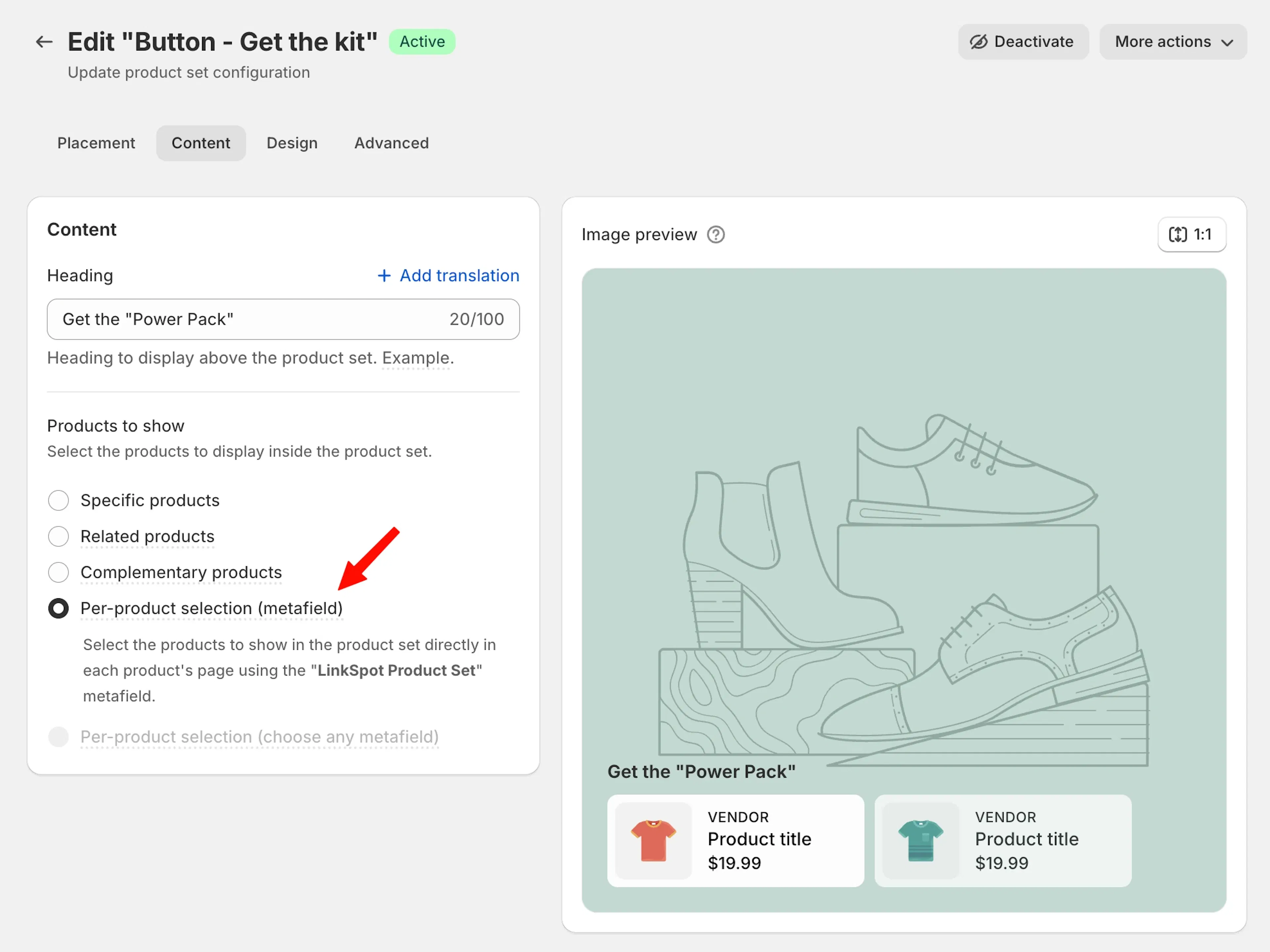
- Per-product selection (metafield). LinkSpot creates the metafield for you. Available on the Growth and Scale plans.
- Per-product selection (choose any metafield). You use a product metafield you created yourself. Available on the Scale plan.
Use the LinkSpot metafield
1. Create the product set
- Go to Elements > Product sets and create a product set, or open an existing one.
- In the Content tab, under Products to show, select Per-product selection (metafield).
- In the Placement tab, set Target products to All products. You can narrow it down with the collection or tag filters. The set can only appear on products it targets.
- Choose the layout and design, then click Save.
When you save, LinkSpot adds a product metafield to your store, named LinkSpot product set (custom.linkspot_product_set, type list of products). It is created once and reused by every product set with this source.
2. Pick the products on each product
- In the Shopify admin, go to Products and open a product.
- Scroll to the Metafields section at the bottom of the page.
- Click the LinkSpot product set field and select the products to show for this product. They appear in the set in the order you choose here.
- Click Save.
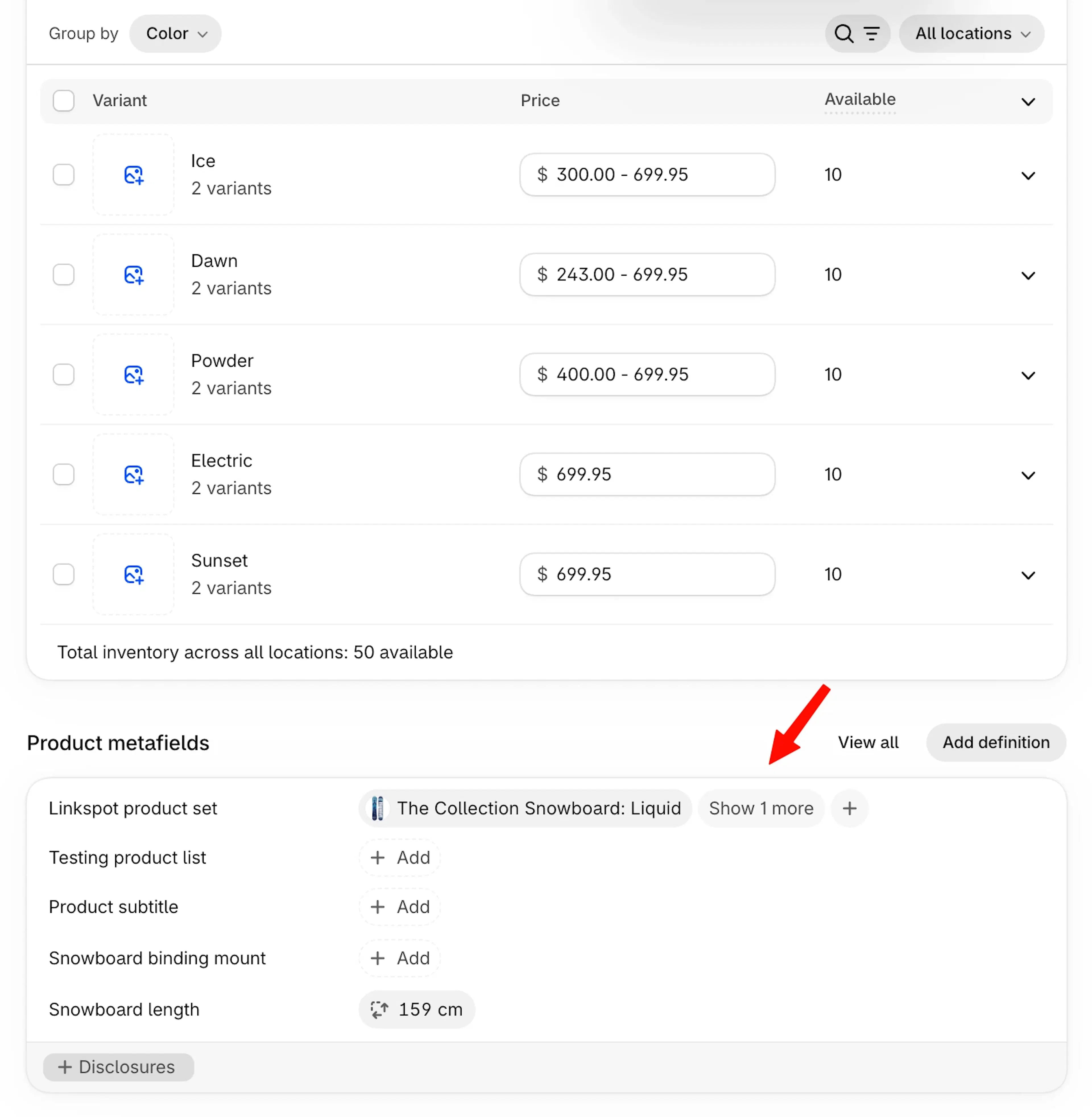
Repeat this for every product that should show the set. Products where the field is empty do not show the set at all.
The LinkSpot product set field is the same for every product set that uses this source. If two of these sets target the same product, both show the same list. To give different sets different lists, use your own metafields as described below.
Use your own metafield
Use this source when you already keep product lists in a metafield (for example, matching accessories), or when you need more than one list per product.
1. Create the metafield definition in Shopify
Skip this step if the metafield already exists.
- In the Shopify admin, go to Settings > Metafields and metaobjects > Products.
- Click Add definition.
- Enter a name, for example "Matching accessories".
- Click Select type, choose Product, and turn on List of products. LinkSpot only accepts metafields of type
list.product_reference. - Click Save.
2. Point the product set at the metafield
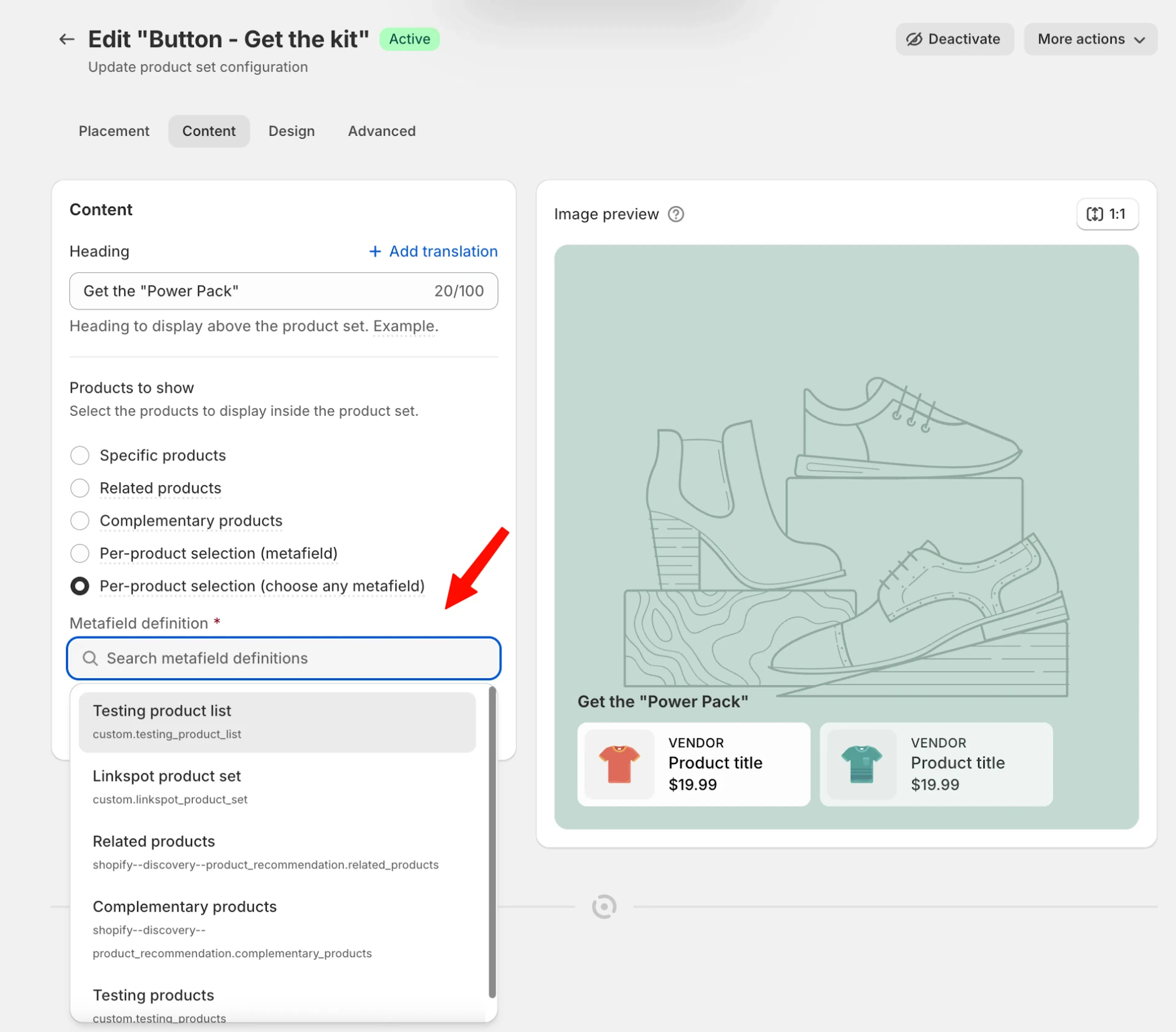
- Open the product set. In the Content tab, under Products to show, select Per-product selection (choose any metafield).
- Pick your metafield from the list. Only product metafields of type list of products appear there.
- In the Placement tab, target the products that should show the set, then click Save.
3. Pick the products on each product
Fill in your metafield on each product, the same way as for the LinkSpot metafield. Open the product in the Shopify admin, find your metafield in the Metafields section, select the products and save.
Things to know
- Empty field, no set. On a product with no products selected in the metafield, the set does not appear. You do not need a separate targeting rule to hide it.
- Metafield edits show on the next page load. The storefront reads the metafield when the product page loads, so there is no LinkSpot sync to wait for. Changes to the product set itself (layout, design, targeting) do sync, see Why changes don't reflect in storefront instantly.
- Bulk changes. The metafield is a regular Shopify product metafield. Any tool that edits product metafields in bulk works with it.
Related articles
- Product sets. Create a product set and choose its layout.
- Targeting products and collections. Decide which products a product set is shown on.